Texting
Last updated September 14, 2026
How Sup AI employees text, who they text, and how each person agrees to it.
Business owners
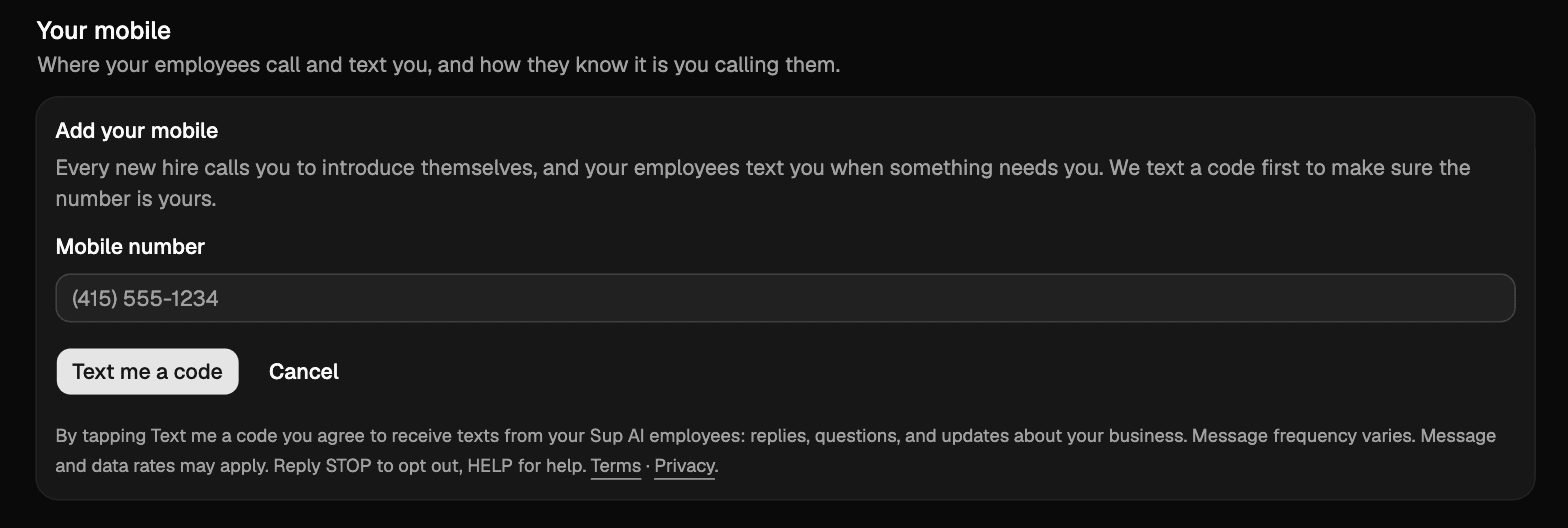
You add your mobile number in your account at sup.ai, behind your Google sign-in, in the card titled Add your mobile. You type the number and tap Text me a code. Right beneath the button the card says what you are agreeing to: texts from your Sup AI employees (replies, questions, and updates about your business), that message frequency varies, that message and data rates may apply, and that STOP opts out and HELP gets help, with links to the terms and the privacy policy. Nothing is pre-checked. The number is kept, and an employee texts it, only after you enter the six-digit code we text to it. This is the screen as it appears:
Customers who text first
A customer texts the business's number, which is the employee's number. The employee replies within that conversation only. The first reply names the business and ends with “Reply STOP to opt out”.
Customers who ask on a call
A customer calls the business's number, or is called back by it, and either asks for something by text or is asked “Would you like me to text that to this number?” and says yes. The employee texts only what was asked for, to the number on the call, and the call transcript records the consent. The text names the business and ends with “Reply STOP to opt out”.
Stopping and help
There is no other way to end up on the receiving end of a Sup AI employee's texts: no marketing, no purchased lists, no sharing of numbers. Reply STOP to any text to stop texts from that number at once, and HELP to get help, or email support@sup.ai. The full terms are at sup.ai/terms and the privacy policy at sup.ai/privacy.